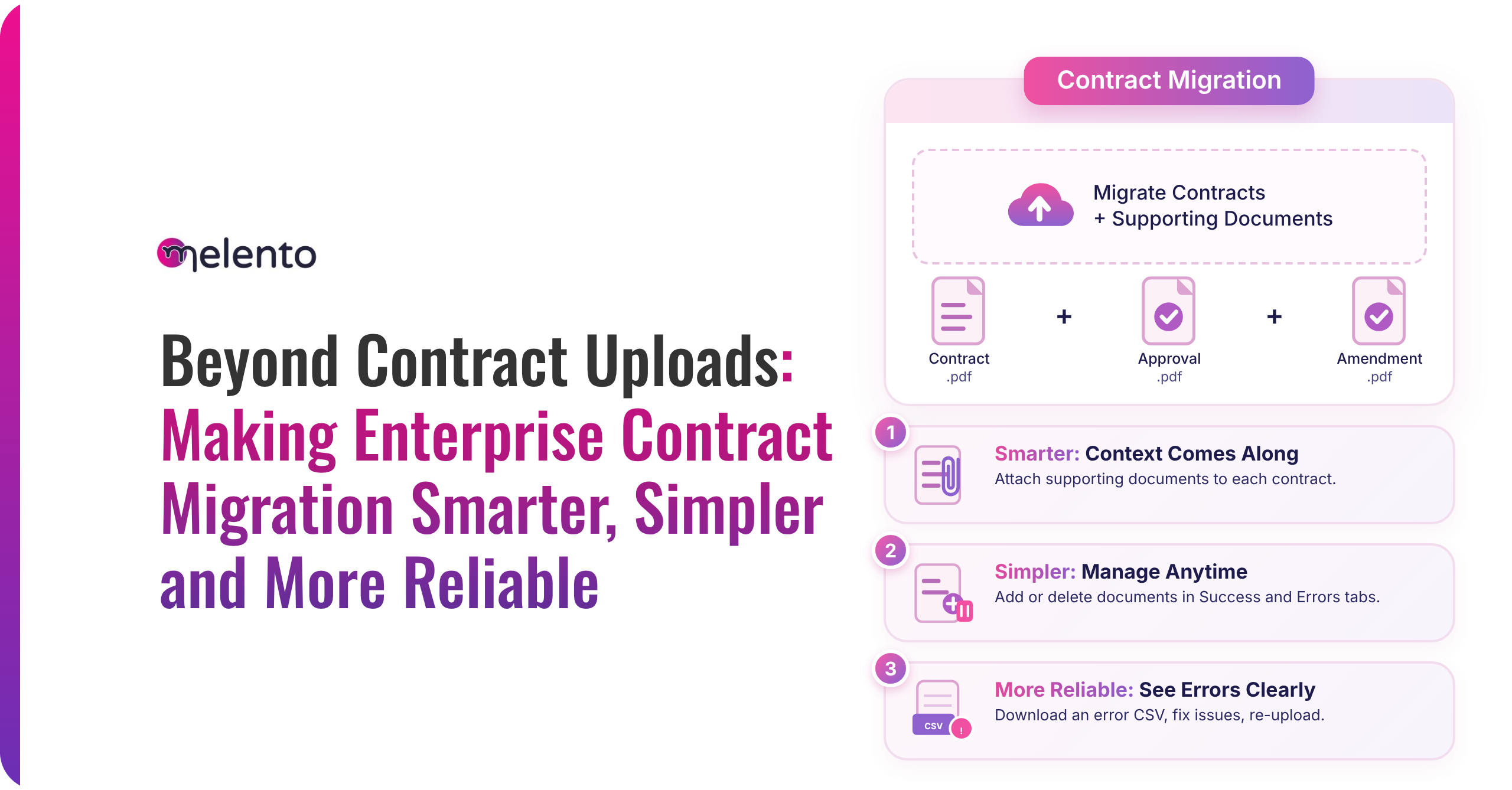

Supporting Documents in Bulk Upload brings every legacy contract into Melento CLM with the documents that back it, so your contract migration ends complete instead of half-finished.
The contract and everything behind it
The problem: the contract moves, the paperwork stays behind
A legacy contract is rarely a single file. Behind each agreement sit amendments, annexures, approvals and proofs that explain what was agreed and why. When a legal team moves thousands of agreements into a central contract repository, the contracts go in through a bulk upload. The paperwork usually stays where it was: shared drives, email threads, someone’s laptop.
The result is a repository that looks complete and is not. During an audit, a renewal or a dispute, someone opens the record, finds the contract, and then goes hunting for everything that modifies or supports it. The migration was meant to end that hunt. It only moved it.
It is also why legacy contract migration stalls. Loading contracts in bulk is fast. Attaching documents is manual work that competes with every other request on a legal team’s list, so it sinks to the bottom of the queue and the repository stays incomplete for months.
Four pain points every migration team recognises
- Contracts without context. The record is searchable, but the annexure that changes a payment term sits in a different folder.
- The attach-later backlog. Supporting documents are added one by one after migration, contract by contract. It is slow, and it rarely gets finished.
- Attachments treated as contracts. Push a supporting document through AI contract extraction alongside real agreements and it can turn into a junk record that buries the real ones.
- Errors you can see but cannot carry. Upload errors were highlighted in the tool, yet the downloadable CSV did not list them. Teams had to cross-check the screen against the sheet to fix anything.
Each one is small on its own. Across a backlog of thousands of contracts, they add up to months of clean-up, records nobody fully trusts, and a migration that is never quite declared finished. These are the same challenges in contract management that a CLM is meant to remove, and it is an uncomfortable place to be on the day an auditor asks for a file.
The solution: Supporting Documents in Bulk Upload
Supporting Documents in Bulk Upload lets you attach supporting documents to each legacy contract in both bulk upload flows, CSV and AI. A team migrating 1,000 legacy contracts with three supporting documents each can bring in all 3,000 attachments during the migration, instead of attaching them one by one afterwards.
Each contract arrives with its paperwork already attached. The AI never mistakes that paperwork for a contract. When something fails, the sheet itself tells you what to fix. It is built for the people who own the migration: legal operations leads, contract managers, and the compliance teams who rely on the trail. The aim is simple: when the migration ends, it has ended, and nothing is waiting in a folder to be attached later.
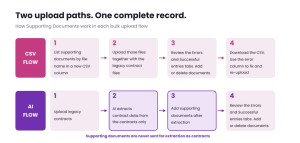
Two upload paths, one complete record. Supporting documents ride along in the CSV flow and join after extraction in the AI flow.
How it works: three capabilities, one per pain
Each capability answers one of the problems above. Both flows follow one principle: supporting documents belong to a contract, so they should travel with it. Here is what your team does in each flow.
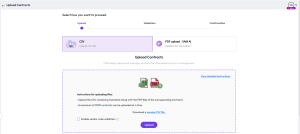
1. Attach at upload (CSV flow)
Add a new column to your CSV and list each supporting document by file name. Say the row for contract 14 lists Annexure_A.pdf and Amendment_1.pdf. Upload those two files together with the legacy contract files, and both attach to that contract. No second pass is needed.
The CSV template with the new supporting documents column filled in, next to the upload box holding contract files and supporting files together.
2. Attach after extraction (AI flow)
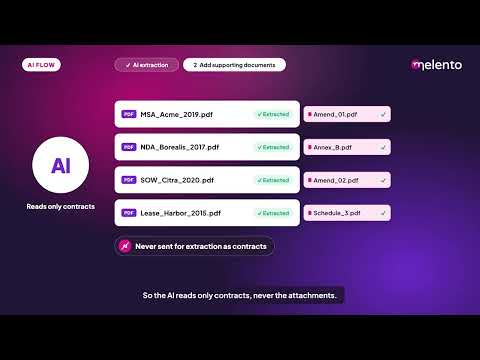
In the AI flow, supporting documents are added only after AI extraction. That ordering is deliberate. The documents are never sent for extraction as contracts, so the AI reads only what it should read, and your repository does not fill up with records that were never contracts.
The AI bulk upload screen after extraction completes, showing the step where supporting documents are added to each contract.
3. Fix without starting over
Spot a wrong attachment? Delete it. Missing one? Add it. You can add and delete supporting documents in both the Errors tab and the Successful entries tab, so you can correct a record where you find it.
The downloadable CSV of uploaded data now includes an error column as well. It lists all the errors highlighted in the tool, so the sheet and the screen finally agree. Fix the rows, then re-upload.
The Errors and Successful entries tabs with the add and delete supporting document actions highlighted.
The downloaded CSV opened in a spreadsheet with the new error column visible.
| Pain point | What changes |
|---|---|
| Contracts without context | Each contract migrates with its supporting documents attached. |
| The attach-later backlog | Documents go in during the upload: listed by file name in the CSV, or added after extraction in the AI flow. |
| Attachments treated as contracts | Supporting documents are never sent for extraction as contracts. |
| Errors you cannot carry | The CSV has an error column, and documents can be added or deleted in both tabs. |

The outcomes: what changes for your team
Take a migration of 1,000 legacy contracts with an average of three supporting documents each. The figures below come from that illustrative model, so swap in your own volumes.
- 3,000 documents attached during the migration, not in a clean-up phase months later.
- About 75 hours of post-migration attaching avoided, at roughly 1.5 minutes per document.
- Zero supporting documents sent to AI extraction as contracts, so there are no junk records to find and delete.
- One error column that lists every highlighted error, so a single download shows what to fix before you re-upload.
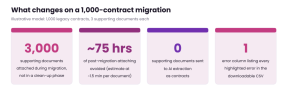
Outcomes for an illustrative 1,000-contract migration. Replace with beta-customer numbers before publishing.
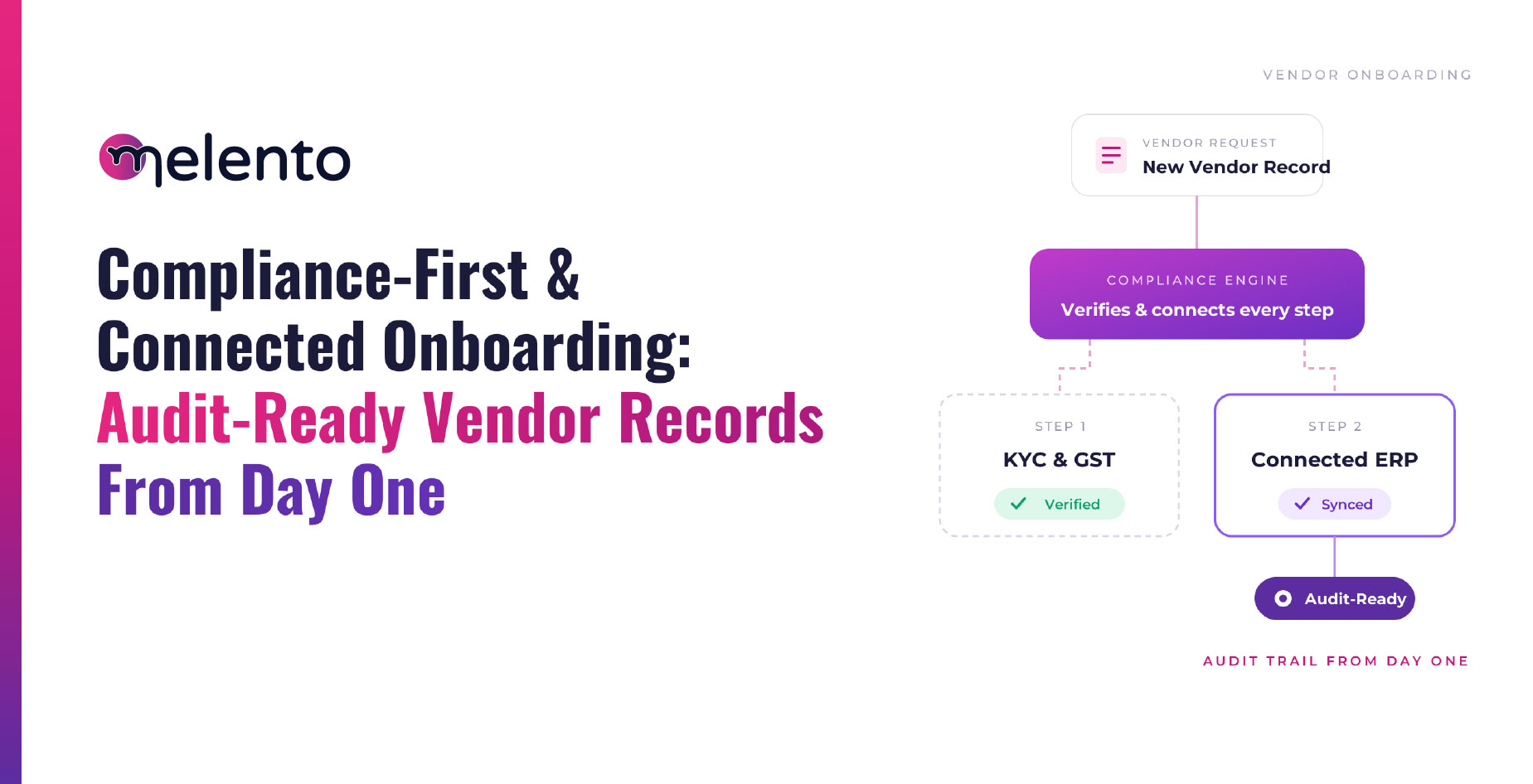
The bigger gain is harder to count. Legal, compliance and finance teams open a contract and find the documents that back it up in the same place. That is what makes a repository audit-ready on the day the contract migration ends, not a quarter later. A renewal date or a payment term can be checked against the amendment that changed it, and legal holds a record it can defend.
Get started
- Existing customers: Open Upload contracts in your Melento CLM repository and add supporting documents to your next legacy batch.
- New to Melento CLM: Book your demo today and walk through a legacy migration with your own sample batch. See the full CLM feature list first if you want to browse.